Finale
makes it easy to start your score. With the Set Up Wizard you can
specify your instrument ensemble, name your score, choose your key,
meter, and tempo, and more. Access the Set Up Wizard from the Launch
Window.

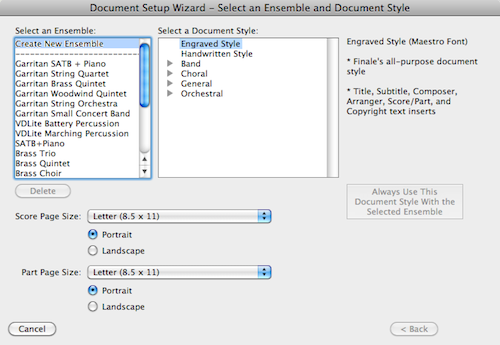
There are four pages to the Set Up Wizard window. In the first you can choose your ensemble from a template on the left (if you often write for the same instrumentation, save a template to this list to speed things up for next time!), and specify your document style: Engraved for more formal looking scores, Handwritten for lead sheets (this style looks like the Real Book). You can also choose your page size and layout (you can print letter, legal or tabloid in the Learning Center).
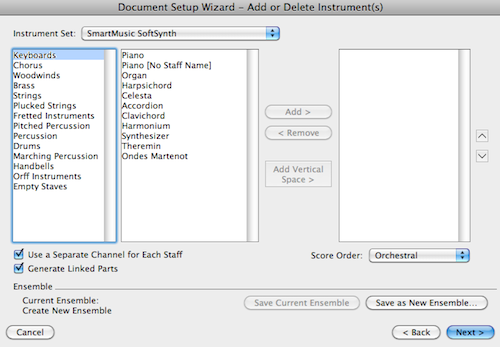
Page 2 is where you create your ensemble. Choose an instrument set at the top, and the instrument families are on the left, then add your instruments from the second column. Double-click the instrument or click Add. To save your ensemble as a template for the previous page, click Save Current Ensemble.
Next page, name your piece, add the composer name, etc.
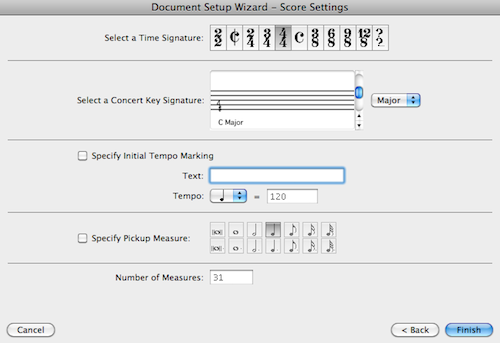
Lastly, choose your meter, key, tempo, pick up measure (if applicable) and number of measures (this can easily be changed later if you don't know yet how many measures).
That's it, now just write the music! You can get in-depth training with Finale at the Learning Center. Sign up for one-to-one tutoring, or software training sessions.
There are four pages to the Set Up Wizard window. In the first you can choose your ensemble from a template on the left (if you often write for the same instrumentation, save a template to this list to speed things up for next time!), and specify your document style: Engraved for more formal looking scores, Handwritten for lead sheets (this style looks like the Real Book). You can also choose your page size and layout (you can print letter, legal or tabloid in the Learning Center).
Page 2 is where you create your ensemble. Choose an instrument set at the top, and the instrument families are on the left, then add your instruments from the second column. Double-click the instrument or click Add. To save your ensemble as a template for the previous page, click Save Current Ensemble.
Next page, name your piece, add the composer name, etc.
Lastly, choose your meter, key, tempo, pick up measure (if applicable) and number of measures (this can easily be changed later if you don't know yet how many measures).
That's it, now just write the music! You can get in-depth training with Finale at the Learning Center. Sign up for one-to-one tutoring, or software training sessions.